Create a gift offer
A gift offer gives shoppers one free product when their cart reaches a minimum spend. Add tiers to give a better gift to bigger carts.
Before you start
- The gift must be a product in your store and in stock. Shoppers can't add an out-of-stock gift.
- Only one gift offer can be active at a time. You can create more and keep them as drafts or schedule them.
Create the offer
-
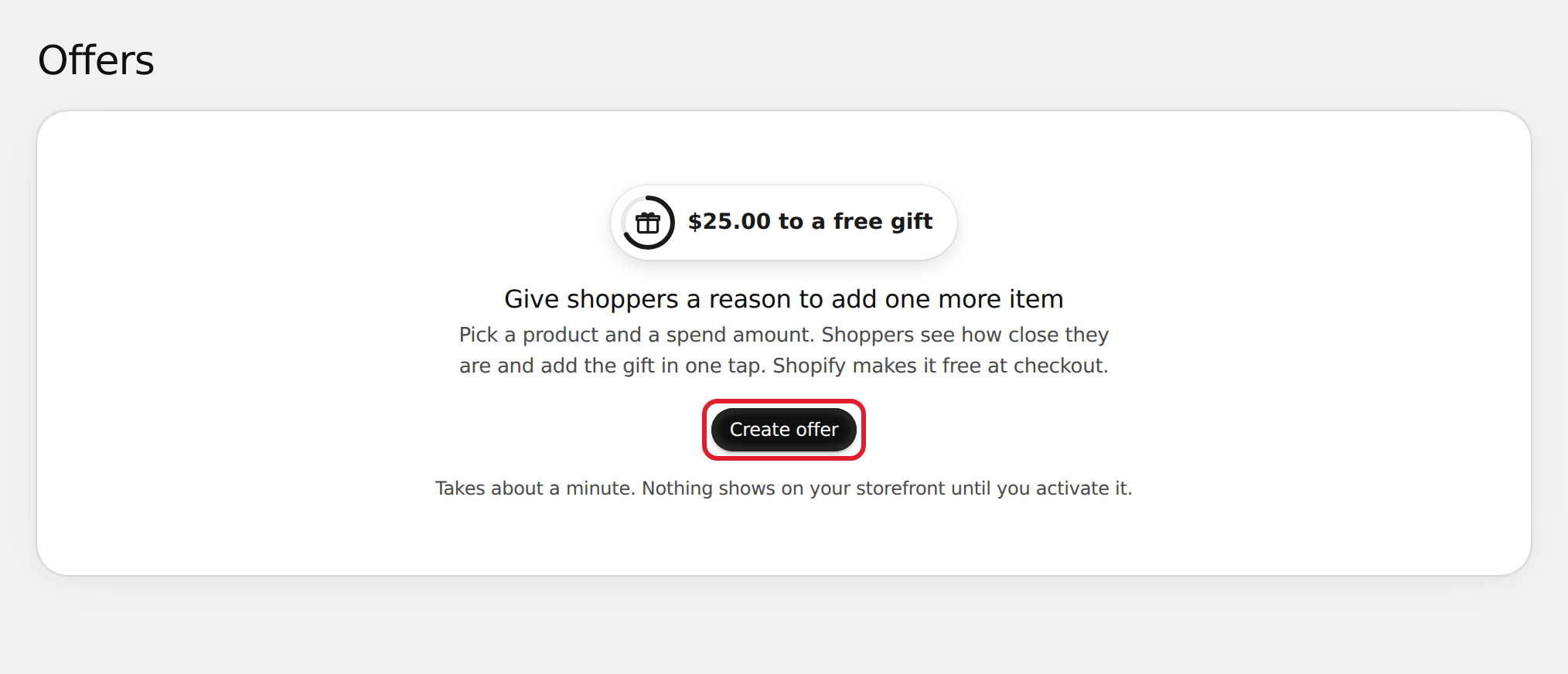
In Gift Lift, open Offers and select Create offer.
-
Enter a Title, for example "Holiday gift". Only you see it.
-
Under Reward, keep Free gift. You can't change the reward after the offer is saved. For free shipping, see Create a free shipping offer.
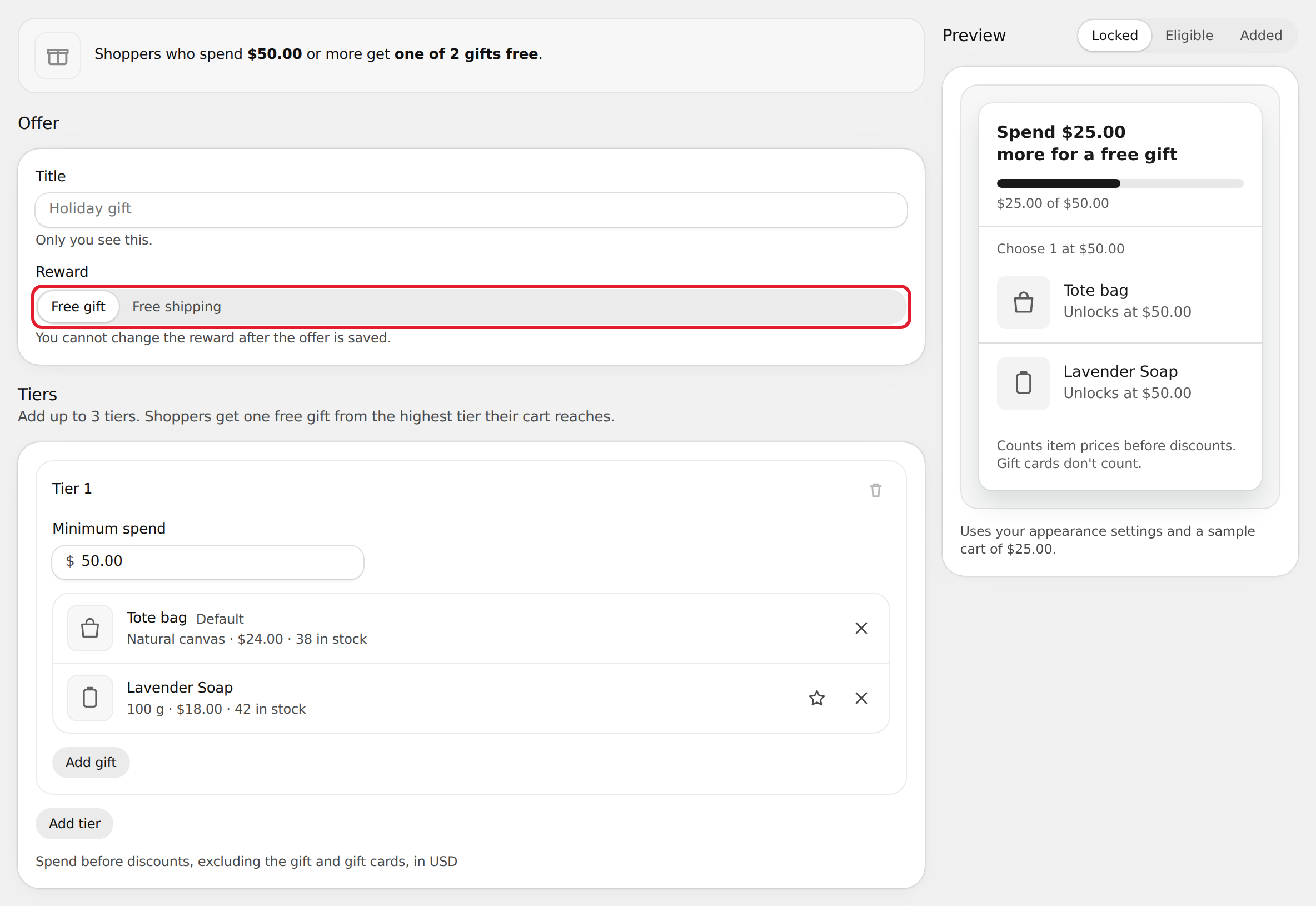
The summary at the top of the page updates as you fill in the offer.
Set the minimum spend and gifts
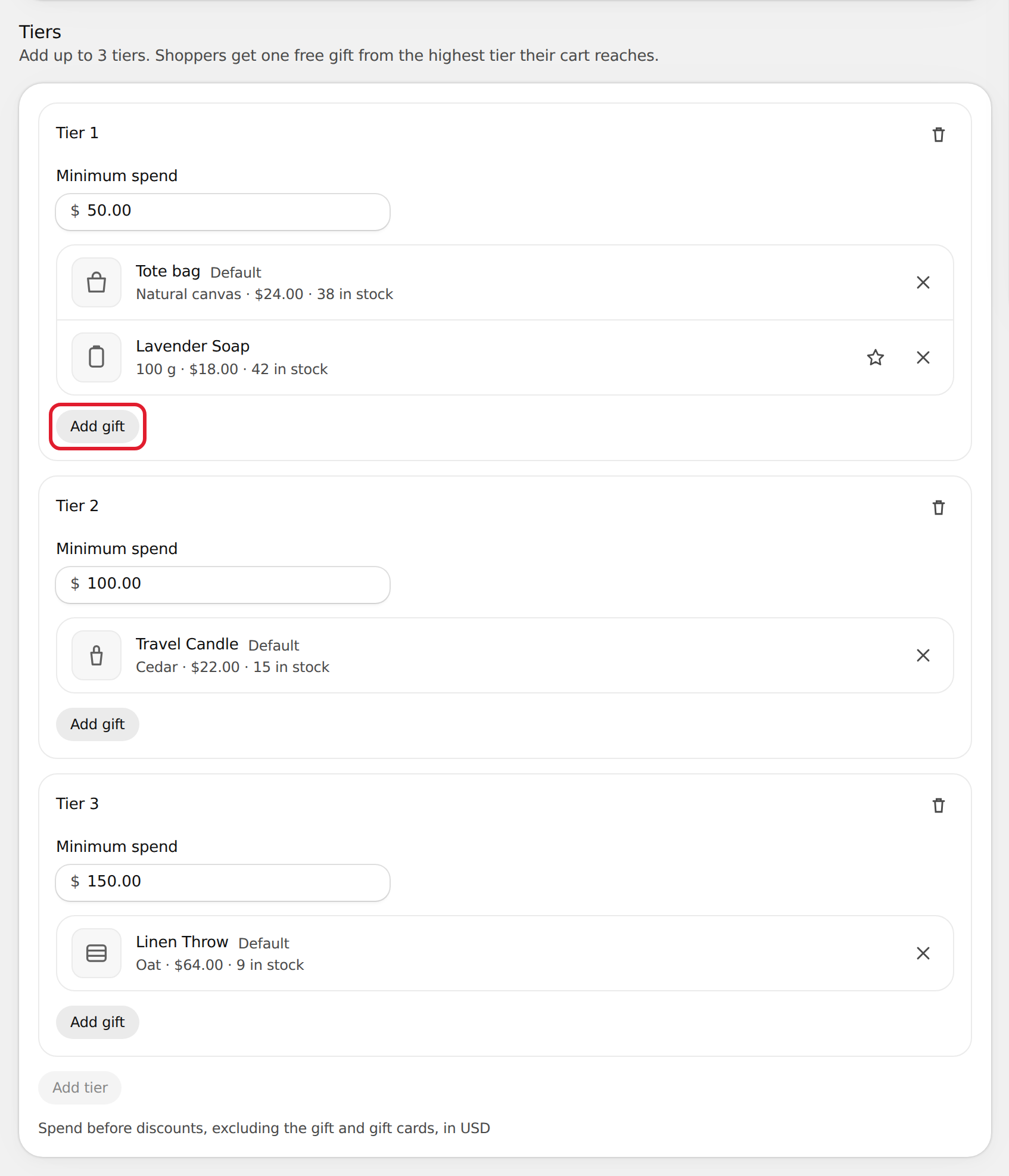
Each tier has a Minimum spend and up to 3 gifts. Shoppers pick one gift from the highest tier their cart reaches.
- In Tier 1, enter the Minimum spend.
- Select Add gift and pick one or more products in the Shopify product picker.
- To make a different gift the one that's preselected for shoppers, select the star next to it (Set as default).
- Optional: select Add tier for a higher spend with a better gift. You can add up to 3 tiers.
Rules for tiers:
- Each tier's minimum spend must be higher than the tier before it.
- A product can be a gift in only one tier.
- Minimum spend counts item prices before discounts. The gift and gift cards don't count.
Schedule the offer (optional)
Without a schedule, the offer starts when you activate it and runs until you pause it.
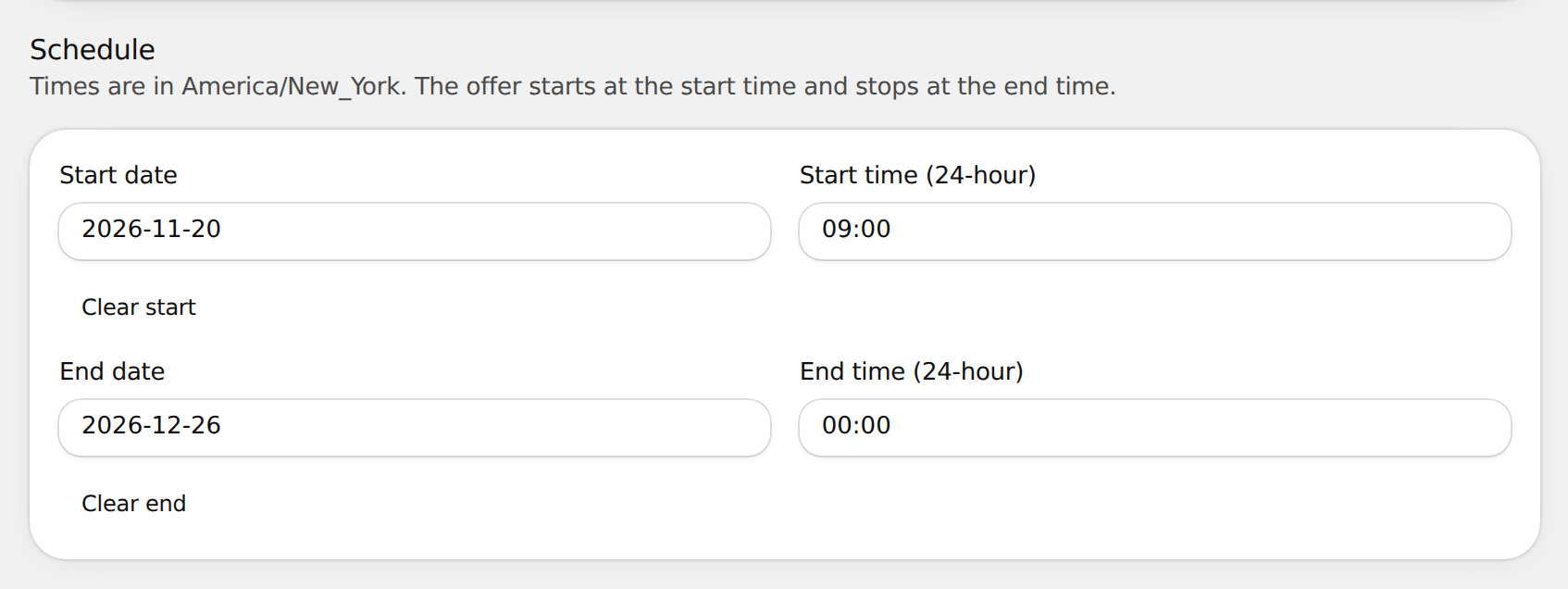
- Under Schedule, select Add schedule.
- Enter a Start date and Start time (24-hour), an End date and End time (24-hour), or both. Times are in your store's time zone.
Check the preview
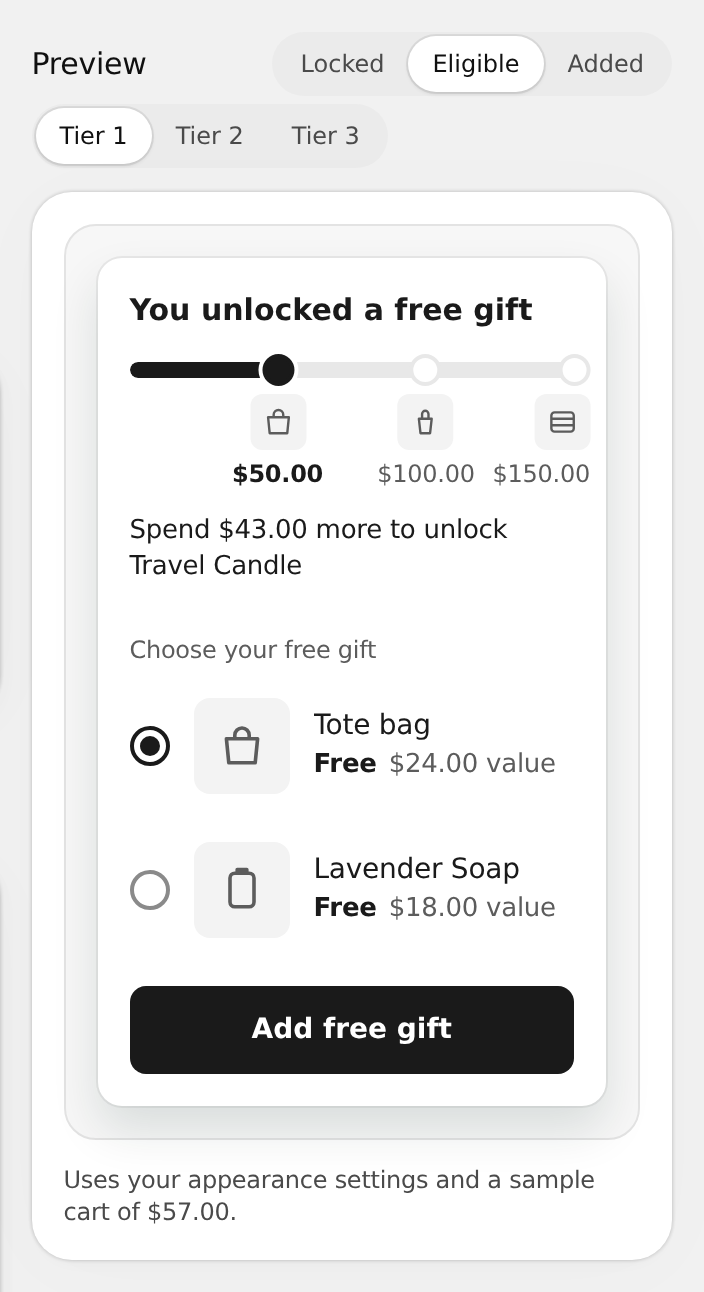
The Preview on the right uses your widget style and a sample cart. Switch between Locked, Eligible and Added to see each state, and between tiers if you have more than one.
Save and activate
- Select Save in the bar at the top of the page. A new offer is saved as a Draft; nothing shows on your store yet.
- Select Activate.
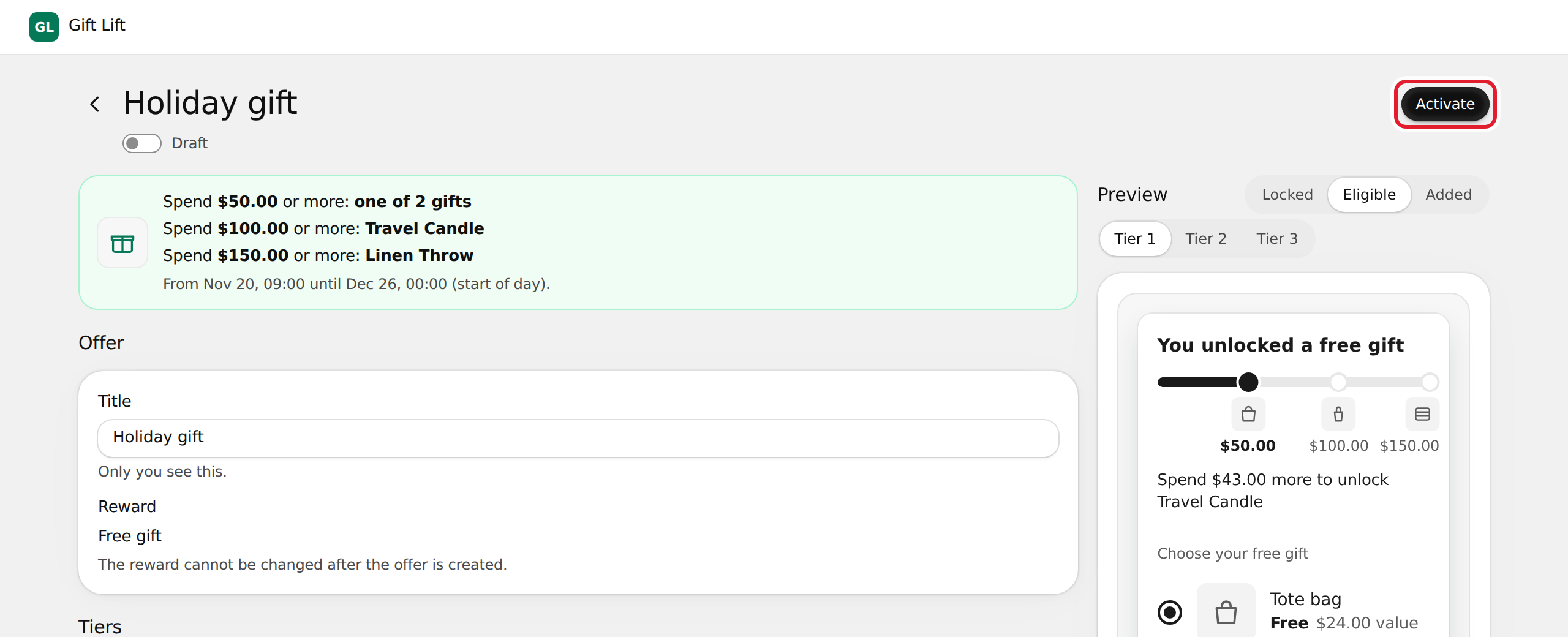
The offer goes live right away, or at its start time if you set a schedule. Shoppers see it only when the app embed is on.
If another gift offer is already active, you're asked to pause it first. Only one gift offer can be active at a time.
Changes you save to an active offer update the storefront and checkout right away.