Get started
The setup guide at the top of Home walks you through three steps. When all three are done, shoppers see the gift widget on your store.
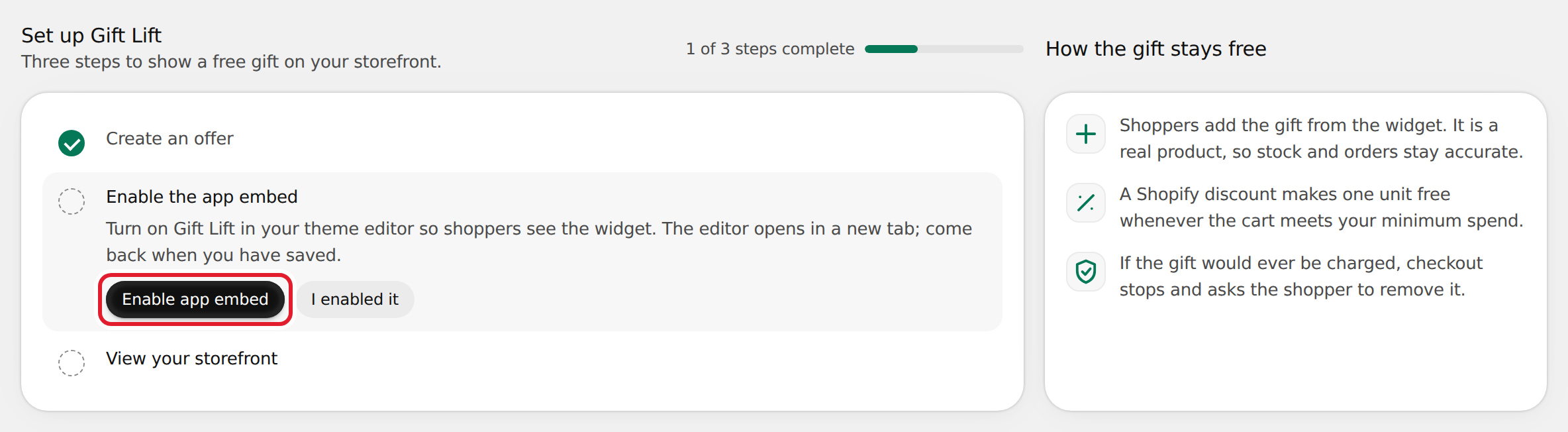
1. Create an offer
- In the setup guide, select Create offer.
- Pick a gift product and the minimum spend that unlocks it, then save. See Create a gift offer for every option.
- Select Activate on the offer.
This step is marked done automatically once you have an offer.
2. Enable the app embed
The widget only shows on your store when the Gift Lift app embed is on in your theme.
- In the setup guide, select Enable app embed. Your theme editor opens in a new tab with the Gift Lift embed turned on under App embeds.
- Select Save in the theme editor.
- Come back to Gift Lift and select I enabled it.
note
Gift Lift can't detect the embed for you, so this step is ticked only when you select I enabled it. If you ticked it by mistake, select Mark as not done.
3. View your storefront
- Select View storefront. Your store opens in a new tab.
- Add products to the cart. The widget shows how much more to spend, then lets you add the gift once the cart reaches the minimum spend.
See What shoppers see for how the widget behaves.
When you're done
The guide collapses to Gift Lift is set up. Select View steps to open it again.
To remove the guide from Home, select Dismiss guide. You can bring it back in Settings under Setup guide.